

Here’s a question: if your computer died right now, what would you lose? Family photos? Important documents? Years of memories?
Most people don’t think about backups until it’s too late. But your files can disappear in seconds — from a hardware failure, a spilled cup of coffee, theft, or ransomware. A backup is your safety net.
It Happens More Often Than You Think
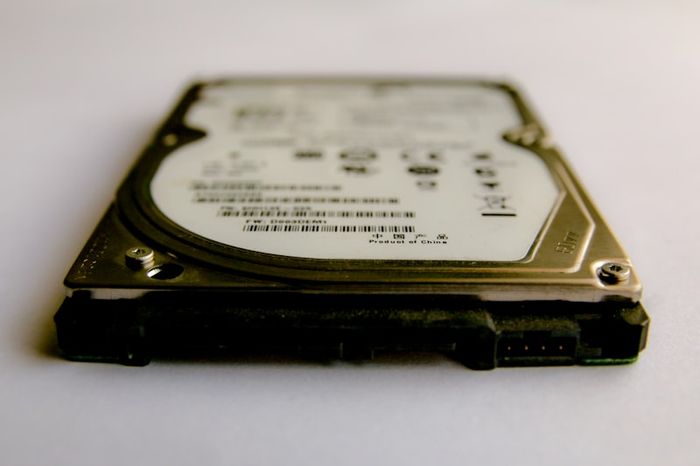
Every hard drive will eventually fail — it’s not a question of if, but when. The average hard drive lasts 3-5 years. And that’s just one risk. Your files could also be lost to:
- Ransomware that encrypts everything and demands payment
- Theft — your laptop gets stolen at a coffee shop
- Accidental deletion — you delete something important without realizing it
- Water or fire damage — natural disasters don’t spare electronics
The 3-2-1 Rule
The gold standard for backups is simple to remember:
- 3 copies of your important files
- 2 different types of storage (like your computer + an external drive)
- 1 copy stored somewhere else (like the cloud)
This sounds complicated, but it’s easier than it seems.
Two Easy Ways to Back Up
Option 1: Cloud Backup (Easiest)
Cloud services automatically save your files to the internet. If something happens to your computer, your files are safe online.
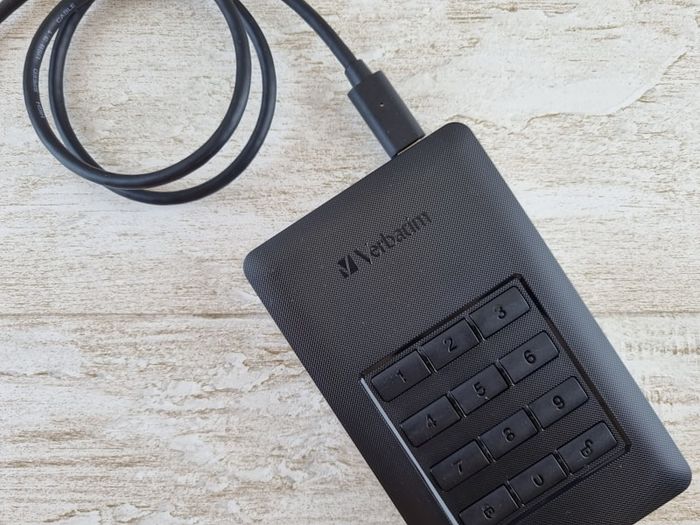
Option 2: External Hard Drive
An external drive is a simple plug-and-play solution. You can buy a 1TB external drive for around $50.

Quick Win
Right now, check if your Documents and Photos folders are syncing to a cloud service. On Windows, look for OneDrive in your taskbar. On Mac, check iCloud Drive in System Settings. If they’re not syncing, turn it on — it takes two minutes.