Protect.Computer
TUTORIAL

Smartphone Security Checklist: Lock Down Your Phone in 10 Minutes

· 3 min read · Device safety
Smartphone Security Checklist: Lock Down Your Phone in 10 Minutes

Your phone knows more about you than almost anyone — your messages, photos, banking apps, location history, and contacts. If it’s not properly secured, anyone who picks it up (or hacks into it remotely) has access to your entire life.

The good news: you can lock it down in about 10 minutes. Go through this checklist right now.

Lock Screen Security

This is your first line of defense. If someone picks up your phone, the lock screen is all that stands between them and everything.
A person using fingerprint authentication to unlock their smartphone securely

1
Use a strong lock method. Set up Face ID or fingerprint unlock (both are secure and convenient). Add a 6-digit PIN as backup — avoid simple PINs like 123456 or your birthday.
2
Set auto-lock to 30 seconds or 1 minute. Go to Settings → Display → Screen Timeout (Android) or Settings → Display & Brightness → Auto-Lock (iPhone). The shorter the timeout, the less time your phone is vulnerable if you set it down.
3
Hide notification previews. By default, message content shows on your lock screen — anyone nearby can read it. Go to Settings → Notifications and change notification previews to “When Unlocked” instead of “Always.”
A 4-digit PIN has only 10,000 possible combinations and can be cracked quickly. A 6-digit PIN has 1 million combinations. Always use 6 digits or longer.

Software Updates

4
Turn on automatic updates. Software updates patch security holes that hackers exploit. On iPhone: Settings → General → Software Update → Automatic Updates (turn everything on). On Android: Settings → System → Software Update → enable auto-download.
5
Update your apps too. App updates aren’t just about new features — they fix security vulnerabilities. On iPhone: App Store → your profile → turn on Auto Updates. On Android: Play Store → your profile → Settings → Auto-update apps.

App Permissions

Security settings being reviewed on a smartphone screen

Apps often ask for more access than they need. A flashlight app doesn’t need your contacts. A calculator doesn’t need your location.

6
Review app permissions. On iPhone: Settings → Privacy & Security — go through Location Services, Camera, Microphone, Contacts, and Photos. Remove access from apps that don’t need it. On Android: Settings → Apps → select each app → Permissions.
7
Set location to “While Using” instead of “Always.” Most apps only need your location when you’re actively using them. Allowing constant location access drains battery and shares your movements 24/7.
A quick test: if you can’t explain why an app needs a particular permission, it probably doesn’t. Deny it — you can always grant it later if the app actually needs it.

Theft Protection

If your phone gets lost or stolen, these features help you find it or remotely wipe it.
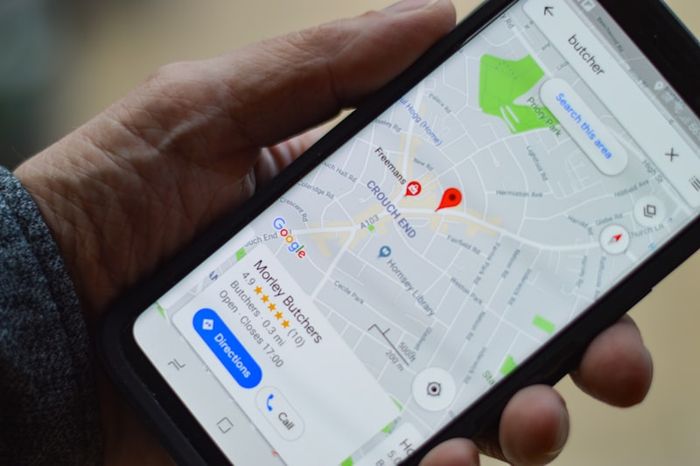
A phone showing a map with Find My Phone feature active for locating a lost device

8
Turn on Find My Phone. On iPhone: Settings → your name → Find My → Find My iPhone — turn on all three options. On Android: Settings → Security → Find My Device — turn it on.
9
Enable remote wipe. This is included with Find My iPhone and Google’s Find My Device. If your phone is stolen and you can’t recover it, you can erase everything remotely from any web browser.
10
Write down your phone’s IMEI number. Dial *#06# on your phone to display it. Save this number somewhere safe — your carrier can use it to block the phone if it’s stolen. Police may also need it to file a report.
Don’t download apps from outside the official App Store (iPhone) or Play Store (Android). Unofficial “sideloaded” apps bypass security checks and are a common source of malware.

Quick Win

Right now, check that Find My Phone is turned on and that your lock screen timeout is set to 1 minute or less. These two settings take 30 seconds and dramatically improve your phone’s security.

Related reading